Windows 10 / 11 · x64 · portableWindows 10 / 11 · x64 · bez instalacji
Your monitor layouts, one shortcut away.
Każdy układ monitorów na jeden skrót.
Save every arrangement your desk goes through — the TV on HDMI for games, three screens when the
laptop is docked, one turned to portrait for reading — and switch between them from the tray
or with a keyboard shortcut.
Zapisz układy, w których pracuje Twoje biurko: telewizor na HDMI do grania, trzy ekrany po
zadokowaniu laptopa, monitor obrócony do pionu do czytania. Potem przełączaj je jednym
kliknięciem w zasobniku albo skrótem klawiszowym.
No installerBez instalatoraNo administrator rightsBez uprawnień administratoraNo .NET to installBez instalowania .NETMIT licenceLicencja MIT
The window draws every profile to scale before you apply it. This preview switches on its own — or pick a profile.
Każdy profil widać w skali, zanim go włączysz. Ten podgląd zmienia się sam, ale możesz też wybrać profil ręcznie.
One window, one tray icon
Jedno okno, jedna ikona w zasobniku
Most of the time nothing is on screen. The popup lives on the tray icon; the window has Profiles, Scenes and Settings pages down a rail on the left, and the profile editor and every dialog open inside it.
Na co dzień aplikacja to tylko ikona w zasobniku z podręcznym menu. Okno otwierasz, gdy chcesz coś zmienić: profile, sceny i ustawienia są zakładkami na pasku po lewej, a edytor profilu i wszystkie okienka otwierają się w jego środku.
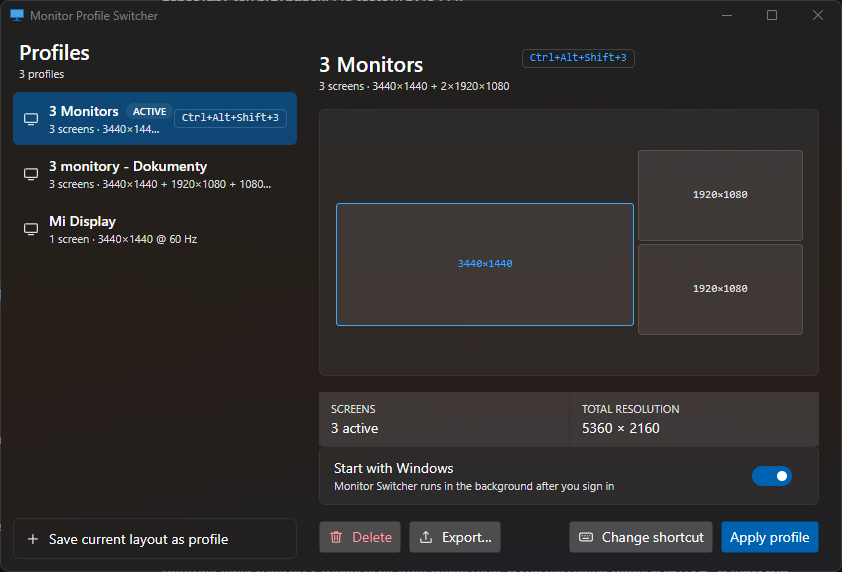
The Profiles page, with a profile's arrangement drawn to scale and its shortcut; Scenes and Settings are one click down the rail.Zakładka profili: układ narysowany w skali i przypisany skrót. Sceny i ustawienia są o jedno kliknięcie dalej.
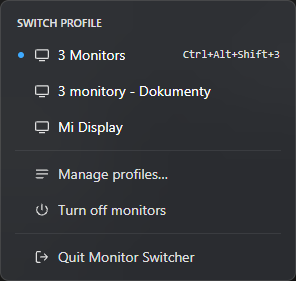
The tray popup: profiles and scenes with shortcuts, Open Monitor Switcher, Settings, and Turn off monitors.Menu w zasobniku: profile i sceny ze skrótami, otwieranie okna, ustawienia i wygaszanie monitorów.
What it does
Co potrafi
Profiles, drawn to scale
Profile pokazane w skali
Resolution, refresh rate, position, rotation, per-monitor scale, HDR and which display is primary — saved as a named profile and previewed before you apply it.
Rozdzielczość, częstotliwość odświeżania, położenie, obrót, skalowanie, HDR i ekran główny, osobno dla każdego monitora, zapisane pod jedną nazwą. Podgląd widzisz, zanim cokolwiek włączysz.
Tray popup and global shortcuts
Menu w zasobniku i skróty klawiszowe
Apply a profile from the notification area, from the window, or with a shortcut that works whether or not the window is open.
Profil włączysz z zasobnika, z okna albo skrótem klawiszowym, który działa zawsze, także przy zamkniętym oknie.
An editor with a safety net
Edytor z bezpiecznikiem
Drag monitors into place with snapping, set each display's mode without touching the hardware, then apply behind a 15-second keep-or-revert countdown.
Ułóż monitory przeciąganiem, dobierz tryb każdego ekranu bez ruszania sprzętu, a potem włącz układ. Masz 15 sekund, żeby go zatwierdzić; inaczej wszystko wraca do poprzedniego stanu.
Scenes: picture settings, too
Sceny, czyli ustawienia obrazu
Brightness, contrast, colour preset, picture mode and ICC profile per monitor, sent over DDC/CI. A scene can follow the clock — Night 20:00–07:00 — or ride along with a profile.
Jasność, kontrast, tryb kolorów, tryb obrazu i profil ICC dla każdego monitora, ustawiane przez DDC/CI. Scena może zmieniać się według pory dnia (np. Noc 20:00–07:00) albo włączać się razem z profilem.
Switches by itself when you dock
Sam przełącza profil po zadokowaniu
Turn auto-switch on and the profile whose displays are exactly the connected set applies on its own. A tie is reported, never guessed at.
Włącz automatyczne przełączanie, a gdy zestaw podłączonych ekranów pasuje do profilu, ten włączy się sam. Kiedy pasuje kilka, dostaniesz powiadomienie zamiast zgadywania.
A command line for scripts
Wiersz poleceń do skryptów
MonitorSwitcher.exe saves, loads and prints arrangements and applies scenes without a UI — for scheduled tasks and scripts.
MonitorSwitcher.exe zapisuje, wczytuje i wypisuje układy oraz włącza sceny bez okna. Przyda się w Harmonogramie zadań i w skryptach.
Updates with consent
Aktualizacje tylko za Twoją zgodą
Checks for a newer release, shows what changed, and replaces the portable file only after you choose Update now — verified against the release checksums first.
Sprawdza, czy jest nowa wersja, pokazuje, co się zmieniło, i podmienia plik dopiero po kliknięciu Update now, wcześniej porównując go z sumami kontrolnymi wydania.
Portable and per-user
Bez instalacji, tylko na Twoim koncie
One file. No installer, no runtime to install, no administrator rights, and nothing in the registry until you switch on Start with Windows yourself.
Jeden plik. Bez instalatora, bez doinstalowywania .NET, bez uprawnień administratora. W rejestrze nie pojawia się nic, dopóki sam nie włączysz „Start with Windows”.
Download
Pobierz
Three files, straight from the release build. The version is shown here because the filenames never change.
Trzy pliki prosto z wydania. Numer wersji widzisz tutaj, bo nazwy plików zawsze zostają takie same.
Filenames deliberately carry no version: Start with Windows points at the file by name, and a renamed executable would silently break autostart for anyone upgrading in place. The in-app updater keeps the names too.
W nazwach plików celowo nie ma numeru wersji: autostart (Start with Windows) wskazuje plik po nazwie, więc inna nazwa po cichu zepsułaby go każdemu, kto aktualizuje przez nadpisanie pliku. Wbudowany mechanizm aktualizacji też nie zmienia nazw.
Before you run it
Zanim uruchomisz
SmartScreen will warn you the first time
Przy pierwszym uruchomieniu SmartScreen pokaże ostrzeżenie
The executables are not code-signed, so Windows reports an unrecognised publisher. Choose More info → Run anyway. Before you do, you can confirm the file is the one the release build produced — see the checksum step on the right.
Pliki nie mają podpisu cyfrowego, więc Windows pokaże „nieznany wydawca”. Kliknij Więcej informacji, a potem Uruchom mimo to. Wcześniej możesz sprawdzić, czy plik jest dokładnie tym z wydania; obok opisujemy, jak porównać sumę kontrolną.
Check the download against the release
Sprawdź, czy pobrany plik zgadza się z wydaniem
Every release ships SHA256SUMS.txt. In PowerShell, in the folder you downloaded to:
Do każdego wydania dołączony jest plik SHA256SUMS.txt. W PowerShellu, w folderze z pobranymi plikami, wpisz:
Get-FileHash .\MonitorSwitcherGUI.exe -Algorithm SHA256
# compare the hash with the MonitorSwitcherGUI.exe line in SHA256SUMS.txt
A match means the file is byte for byte what the release build produced. The in-app updater performs the same check before it touches anything.
Jeśli sumy się zgadzają, masz dokładnie ten plik, który powstał w buildzie wydania. Wbudowany mechanizm aktualizacji robi tę samą kontrolę, zanim cokolwiek podmieni.
There is no installationNie ma czego instalować
1
Download
Pobierz
Put MonitorSwitcherGUI.exe in any folder you can write to — your user folder is fine.
Wrzuć MonitorSwitcherGUI.exe do dowolnego folderu, w którym możesz zapisywać; folder użytkownika w zupełności wystarczy.
2
Run it
Uruchom
It appears as an icon in the notification area. Hover it to see the version.
Aplikacja pojawi się jako ikona w obszarze powiadomień. Po najechaniu na nią zobaczysz numer wersji.
3
Save a profile
Zapisz profil
Open the window, save the current layout, give it a shortcut. Optionally: Start with Windows, on the Settings page.
Otwórz okno, zapisz bieżący układ i przypisz mu skrót. Jeśli chcesz, w ustawieniach włącz Start with Windows.
Requirements and notesWymagania i uwagi
Windows 10 or 11, 64-bitWindows 10 lub 11, 64-bit
Self-contained — no .NET runtime to installWszystko w jednym pliku, bez instalowania .NET
Settings live in %APPDATA%\MonitorSwitcher; pass -settings:"D:\Folder" to keep them elsewhereUstawienia są w %APPDATA%\MonitorSwitcher; parametrem -settings:"D:\Folder" przeniesiesz je w inne miejsce
Scenes need monitors that speak DDC/CI; one that does not simply says soSceny działają na monitorach obsługujących DDC/CI; przy pozostałych aplikacja po prostu o tym informuje
If every monitor ever ends up disabled, boot into safe mode to recoverGdyby kiedyś wszystkie monitory zostały wyłączone, uruchom Windows w trybie awaryjnym i przywróć ustawienia
What's new in 1.8.1
Co nowego w 1.8.1
The release notes, as written for this version.
Opis zmian w tej wersji, po angielsku, tak jak sama aplikacja.
Show the release notesPokaż opis zmian · 1.8.1 · 2026-10-01
Fixed
A scene's lights now follow it when the network was not ready. At sign-in the scene is
applied within seconds, often while Wi-Fi or a VPN is still connecting, and its lights stayed
off. A light that does not answer is now tried again in the background for ten minutes, and
sooner after a network change; the note says it "will be set as soon as it answers". Applying
or editing another scene stops the tries. A Tuya light whose new key came from the cloud is
set with it a moment later, rather than at the next scene.
Settings › Lights no longer gives a light that just missed a scene only half a second to
answer, too little for a Tuya handshake, so it no longer shows a light that is there as not
answering. A light that blinks on Identify shows as answering, and a row follows its light
when a try in the background reaches it.
A light that did not answer at first but turned up at its own address when searched for is
now tried there once more.
A Yeelight light switched off at the wall no longer makes another Yeelight light look as if
it did not answer. Connecting to one bulb waited for every other bulb's connection attempt,
so the working one ran out of time behind the silent one.